Connect an Integration
An integration keeps Oho's worker list in sync with wherever your people data already lives — your HR system, payroll platform, or a spreadsheet. Workers added or updated there flow into Oho automatically, so nobody maintains two lists.
This guide connects an Excel spreadsheet, the simplest integration to start with.
This guide covers the connection. For the template to use and how to host the file (OneDrive, Google Sheets), see Import a Spreadsheet — it walks the data side end to end.
Step 1: Open Integrations
In the left menu under Admin, click Integrations. Existing integrations are listed here with their sync status and run history.
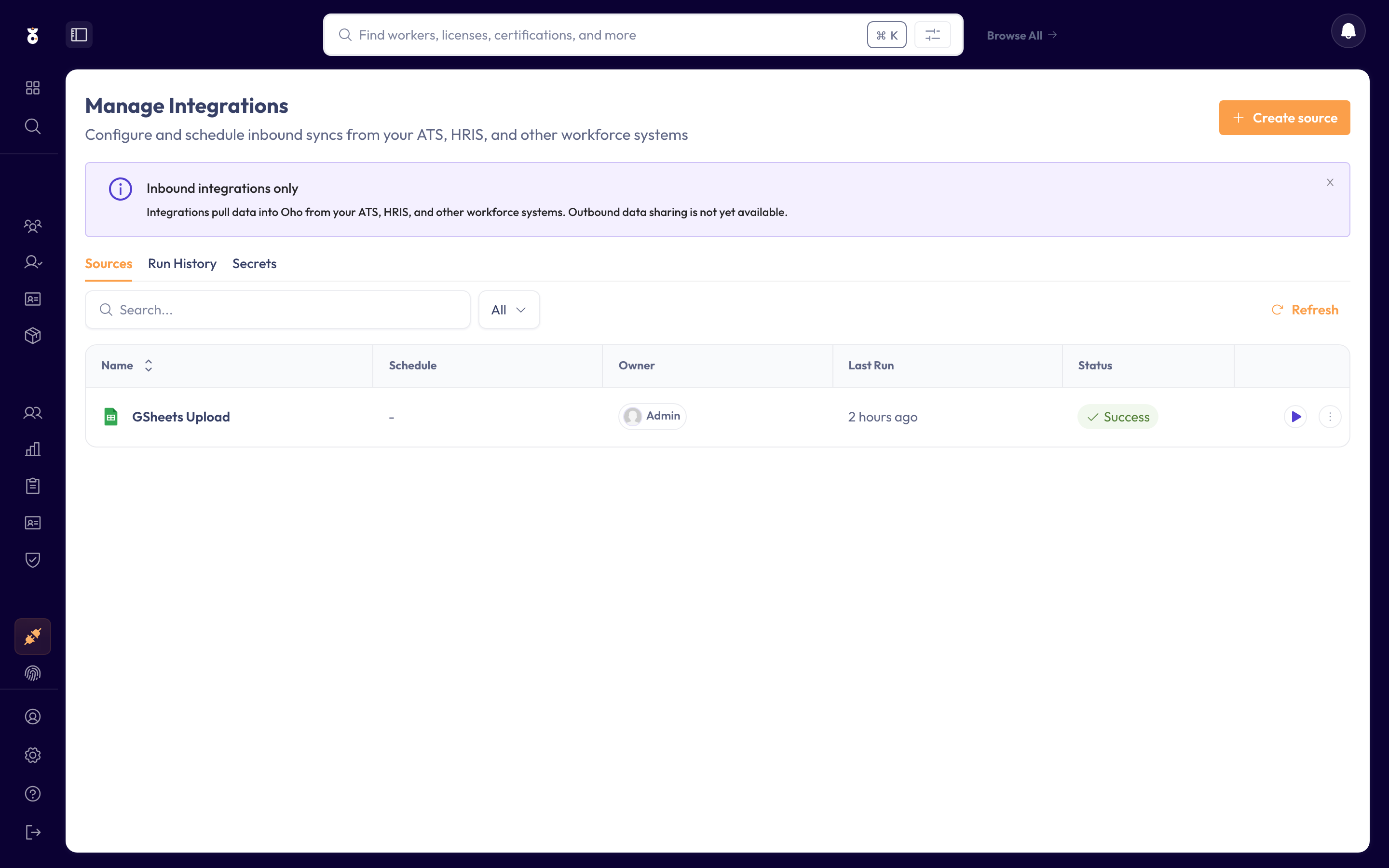
Step 2: Create a new integration
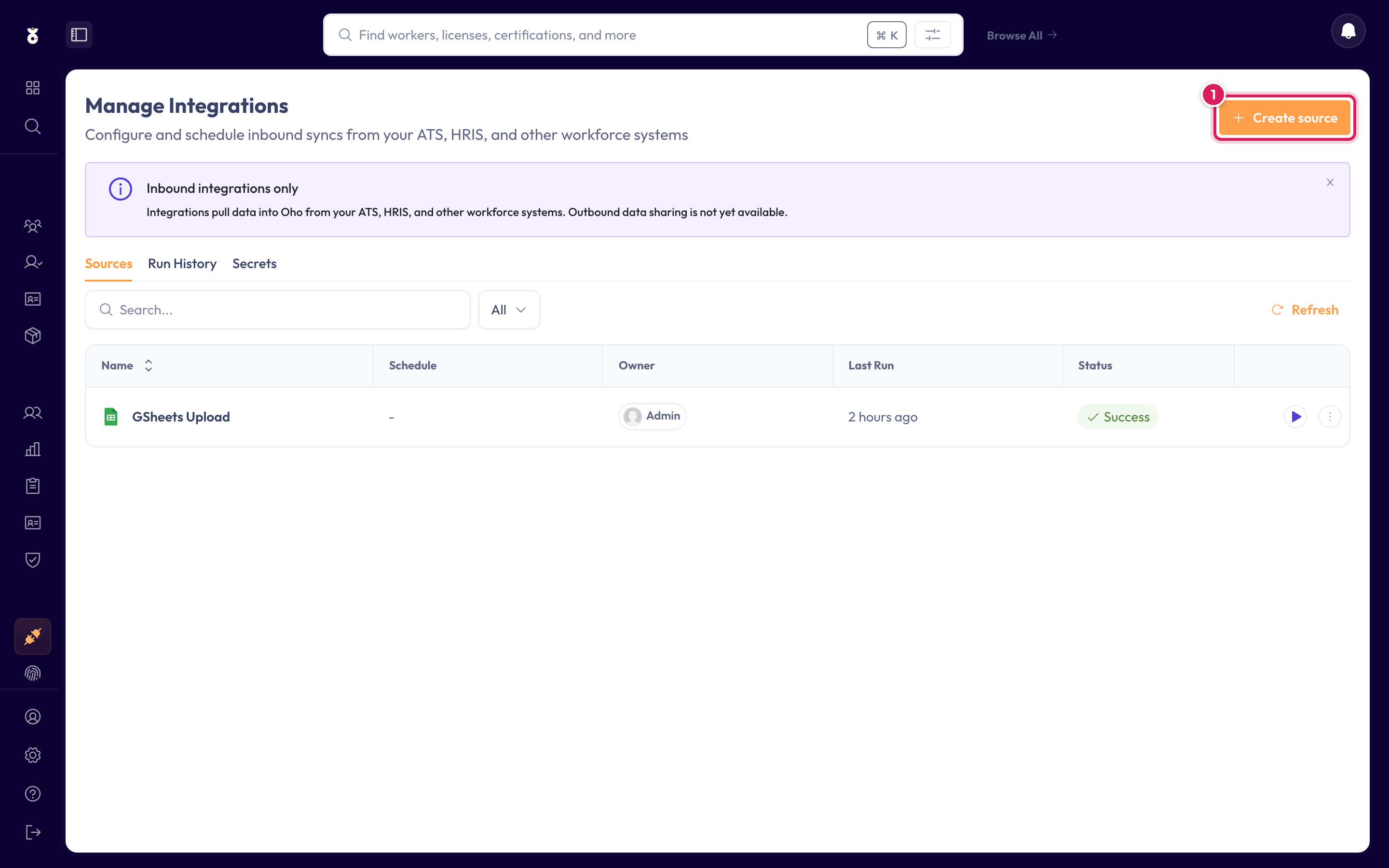
Step 3: Choose Excel
Pick Excel from the list of sources. (Google Sheets and SFTP work the same way — only the connection details differ.)
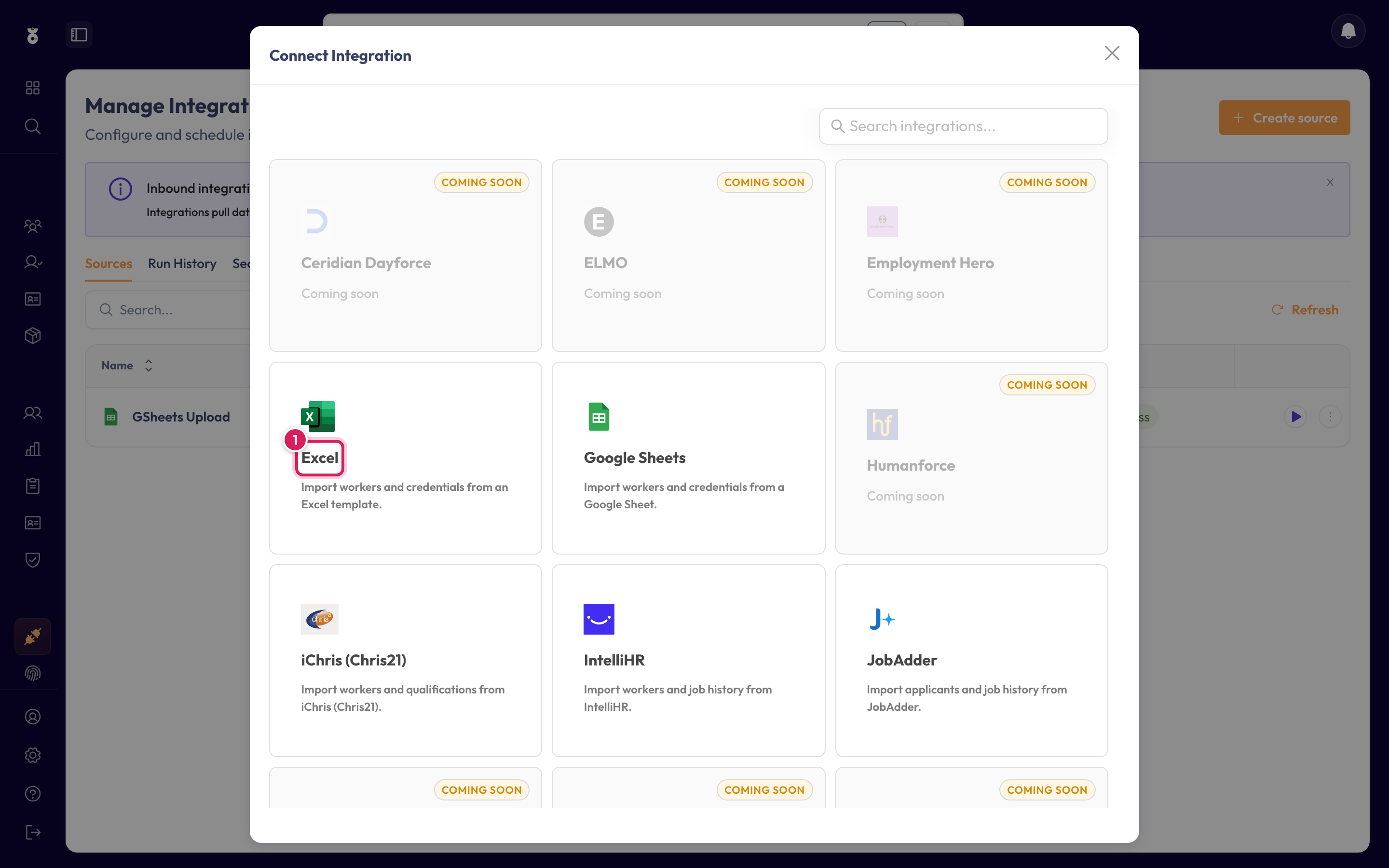
Step 4: Point it at your file
Paste the URL of your .xlsx file (1) — a OneDrive share link, or wherever the file is reachable — and click Next (2).
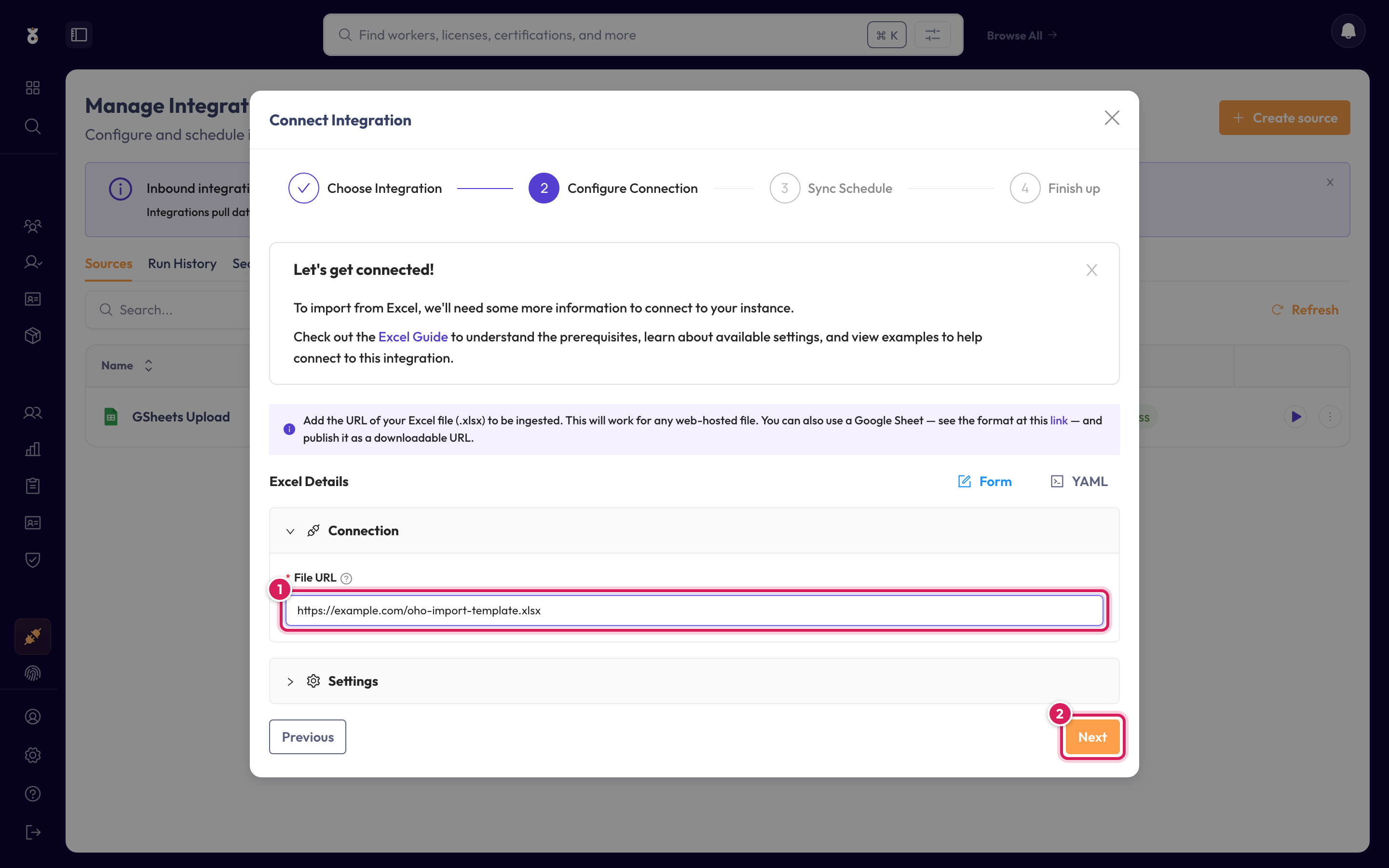
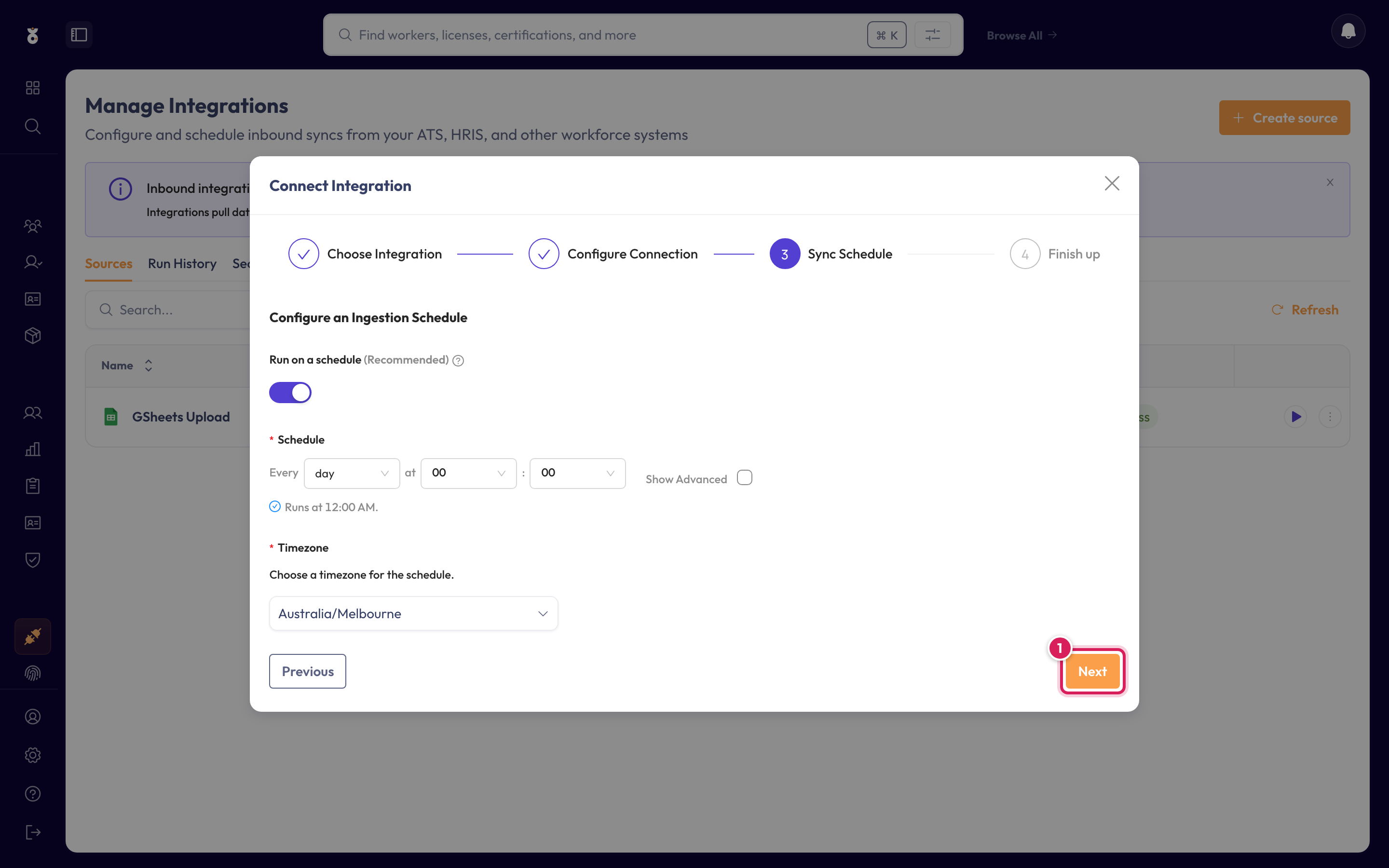
Step 5: Set the sync schedule
Choose how often Oho re-reads the file to pick up new and updated workers. The default works for most teams. Click Next.
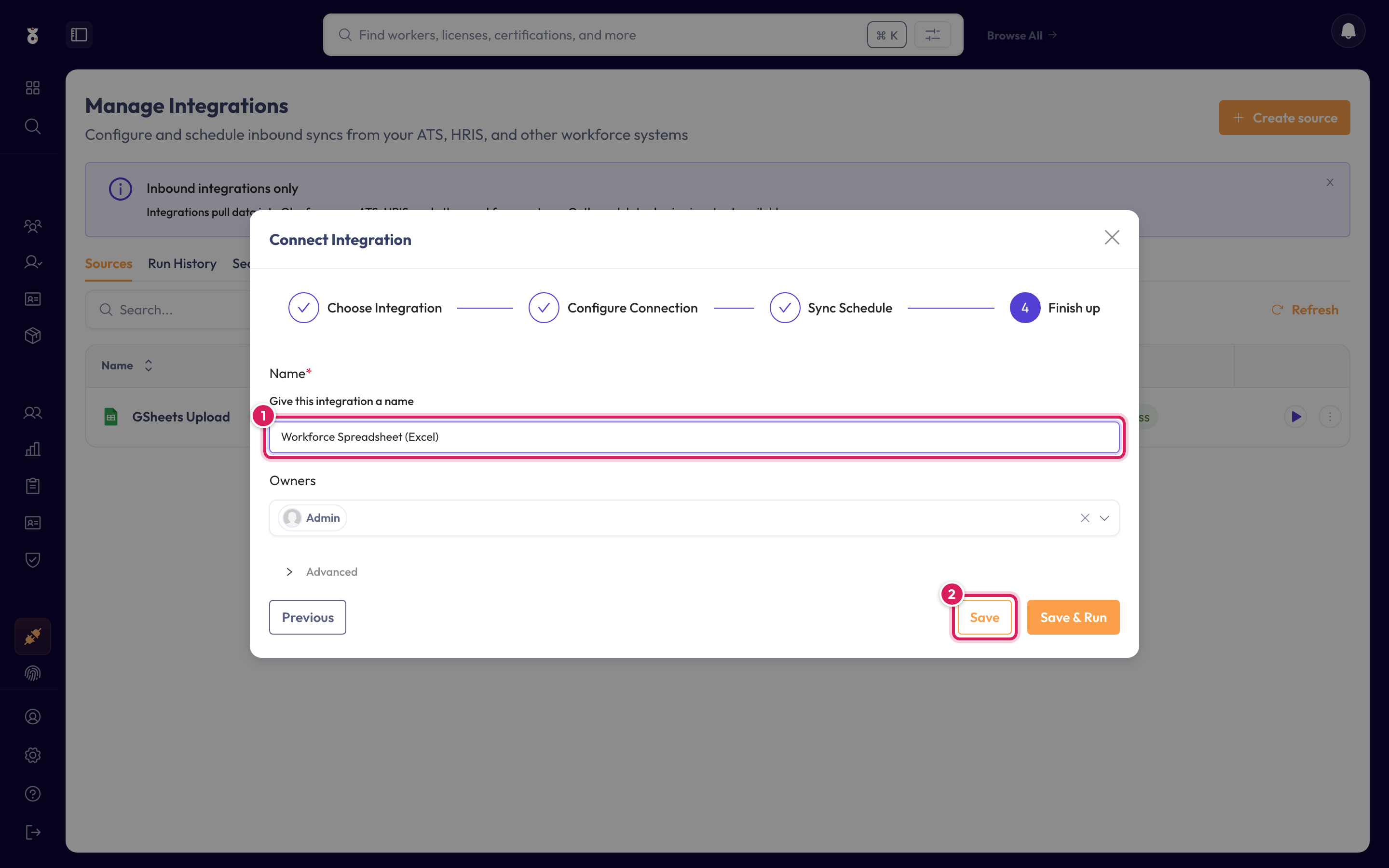
Step 6: Name it and save
Give the integration a name your team will recognise (1), then click Save (2) — or Save & Run to sync immediately.
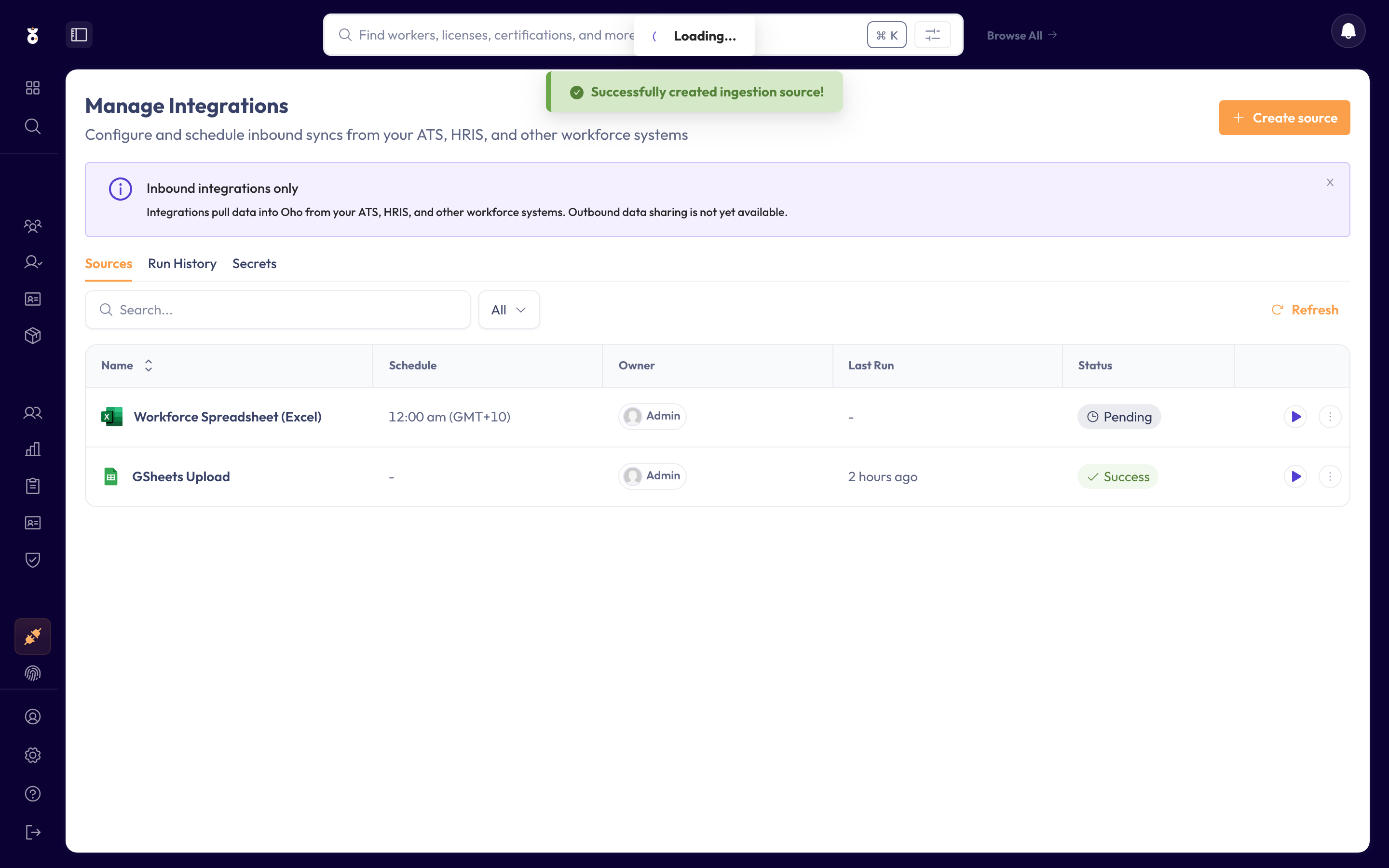
The integration now appears in your list. After its first run, check the run history shows green — every worker in the sheet will have a profile, with their credentials queued for verification.
Each worker arrives with their identity, organisation, and any credential details the source holds — and goes straight into the same verification flows as workers you add by hand.
What's next
- Add a verification source so synced credentials verify at the register automatically