Add a Worker
A worker is anyone whose credentials you need to keep an eye on — staff, volunteers, contractors. Adding one takes about a minute, and Oho's wizard can record their credentials and exemptions in the same pass.
A worker profile with their identity, employment details, and (optionally) their first credentials — ready for Oho to start verifying.
Before you start
Have the worker's legal name and date of birth as they appear on their official ID. Oho uses these to match the person against government registers, so spelling matters.
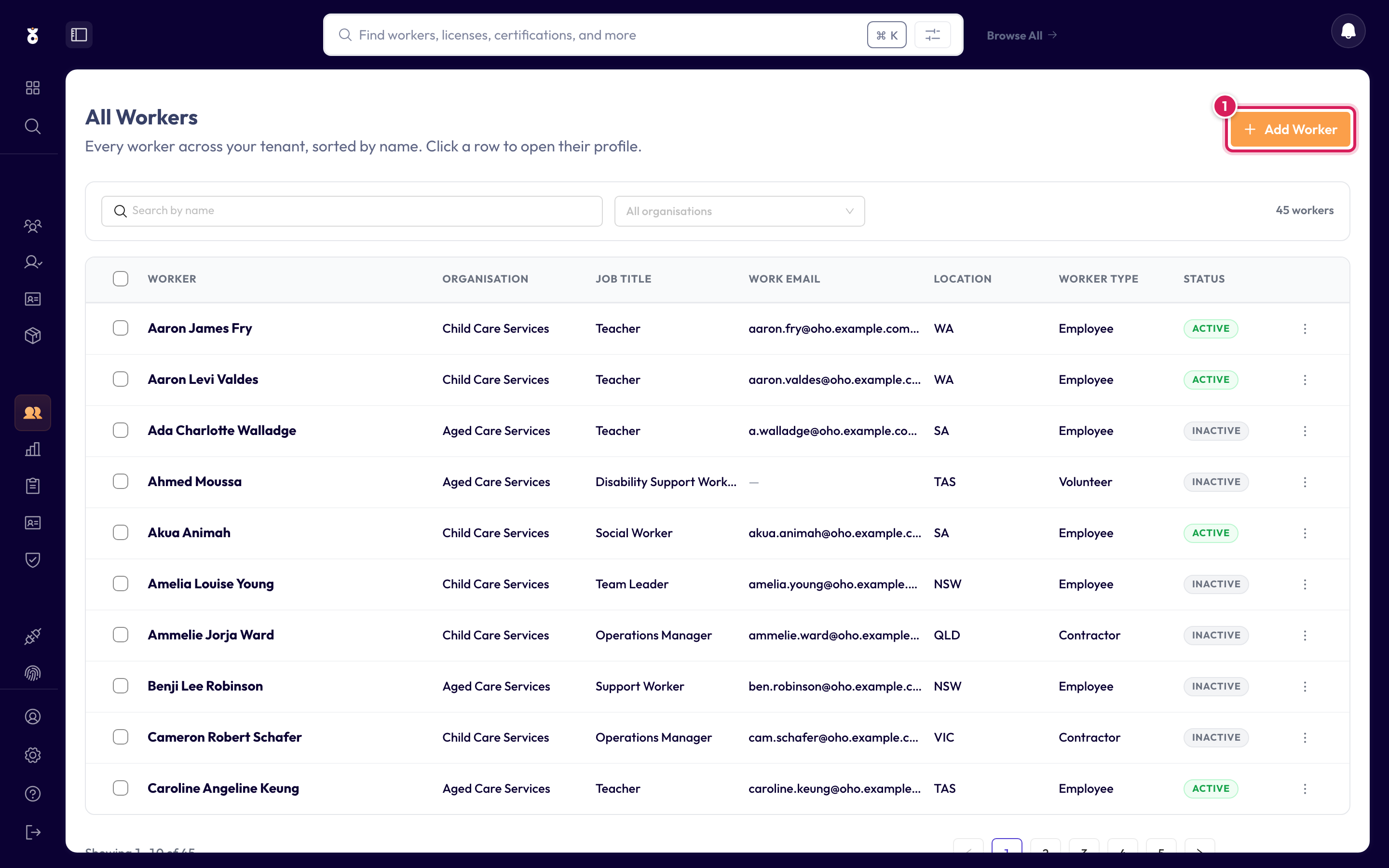
Step 1: Open All Workers
In the left menu under Continuous, click All Workers, then click Add Worker (top right).
Step 2: Enter their details
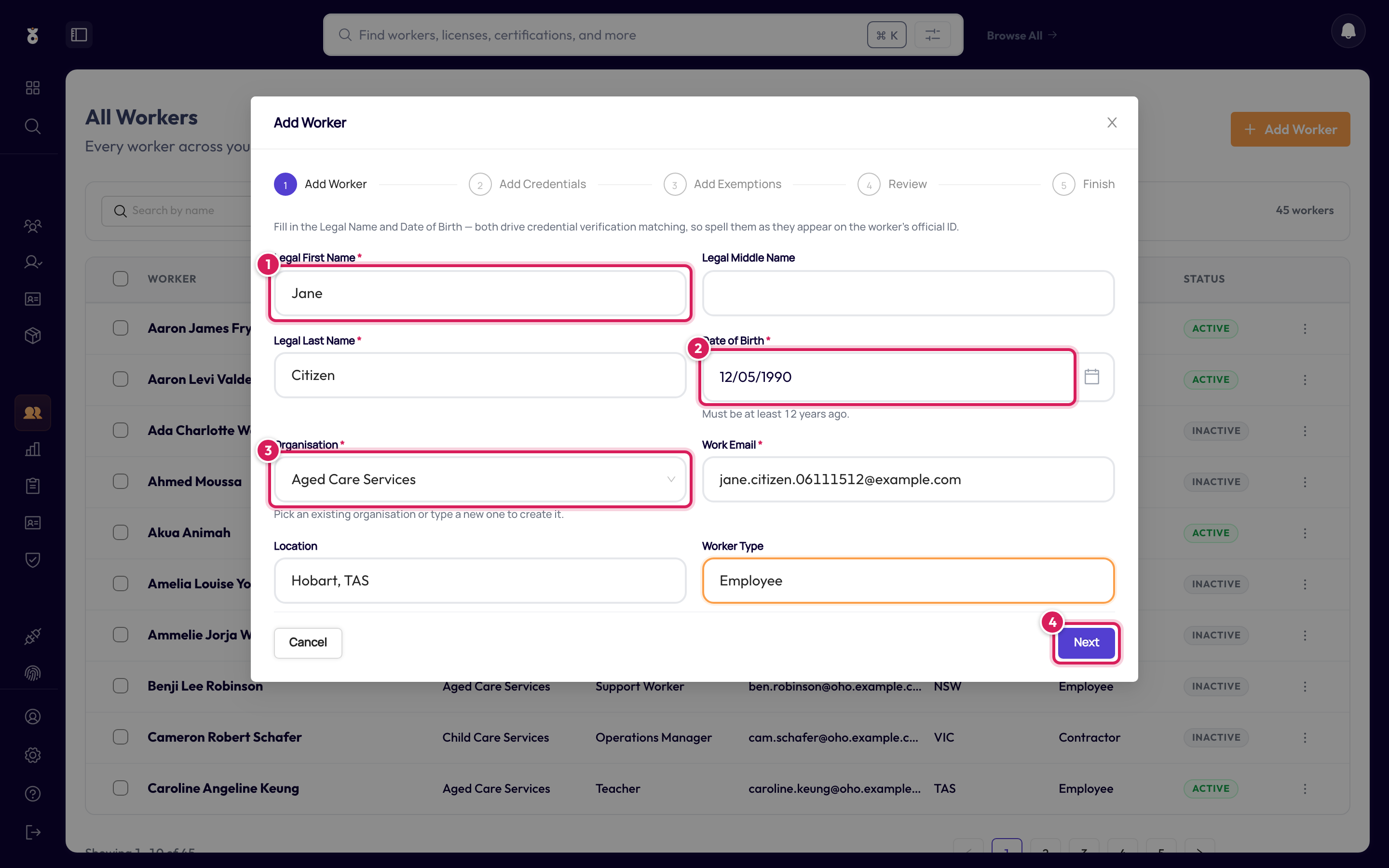
Fill in the form. Fields marked * are required:
- Legal First Name and Legal Last Name — exactly as on their ID
- Date of Birth — DD/MM/YYYY
- Organisation — pick one of yours, or type a new name to create it
- Click Next
Work Email is required too — it's how Oho contacts the worker if you ever request documents from them. Location and Worker Type are optional but make the workers list easier to filter later.
Step 3: Add credentials (optional)
If you already hold the worker's credential details — say their Working With Children Check number — add them now with Add Credential (1). You can also skip this step (2) and add credentials later from their profile.
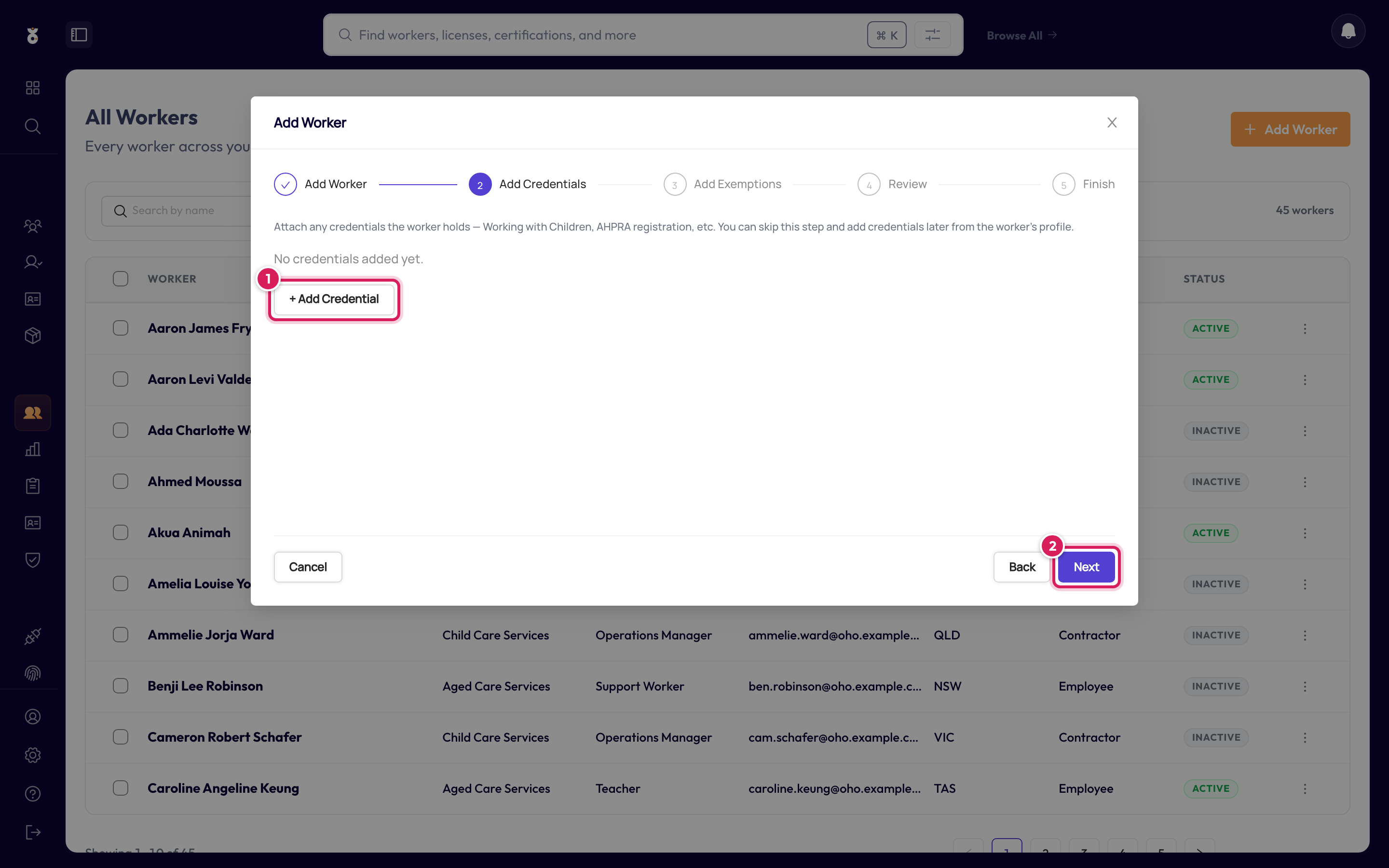
The next step, Add Exemptions, works the same way — record one if the worker holds a dispensation from a normally-required credential, otherwise click Next.
Step 4: Review and create
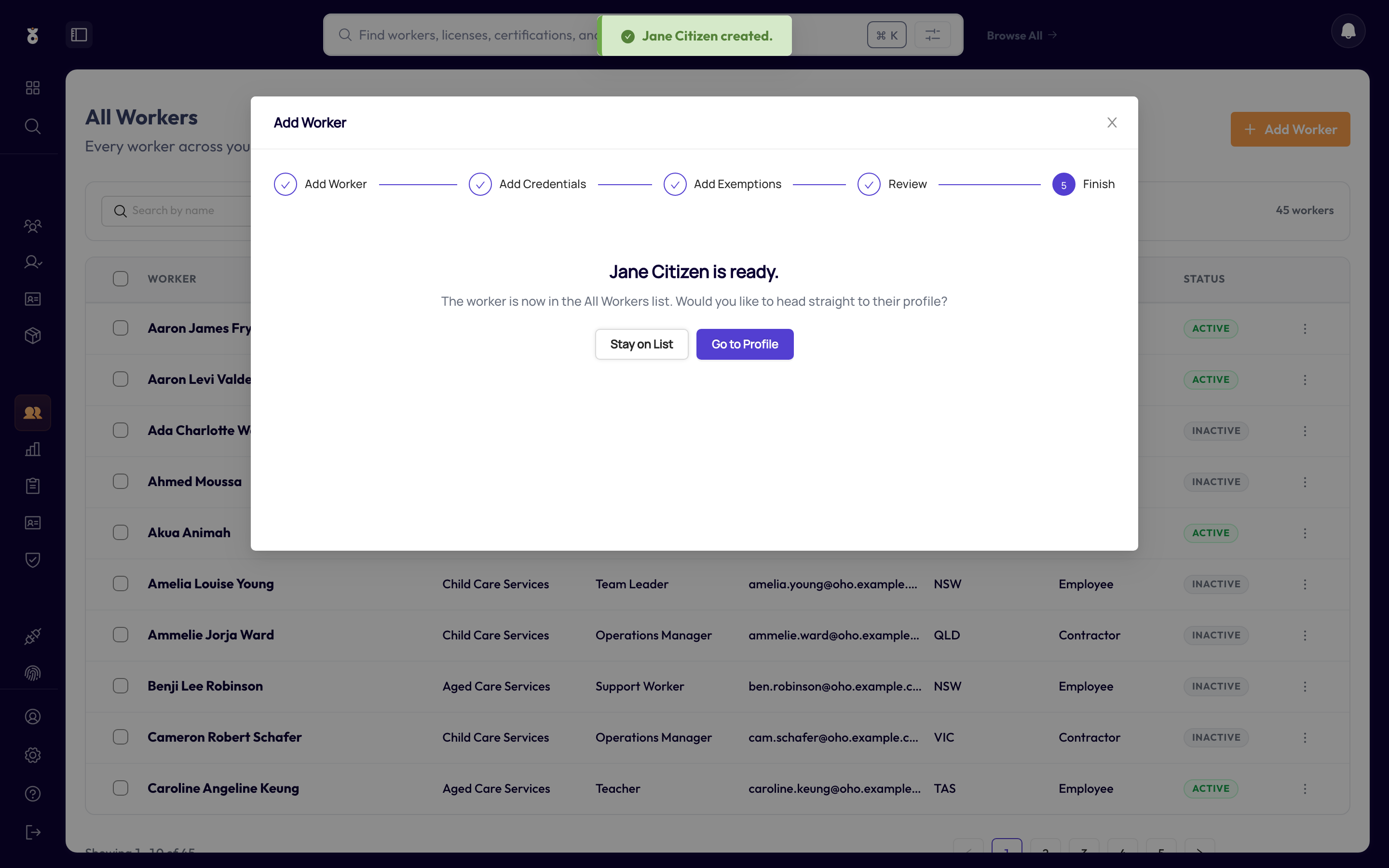
Check the summary, then click through to Create Worker.
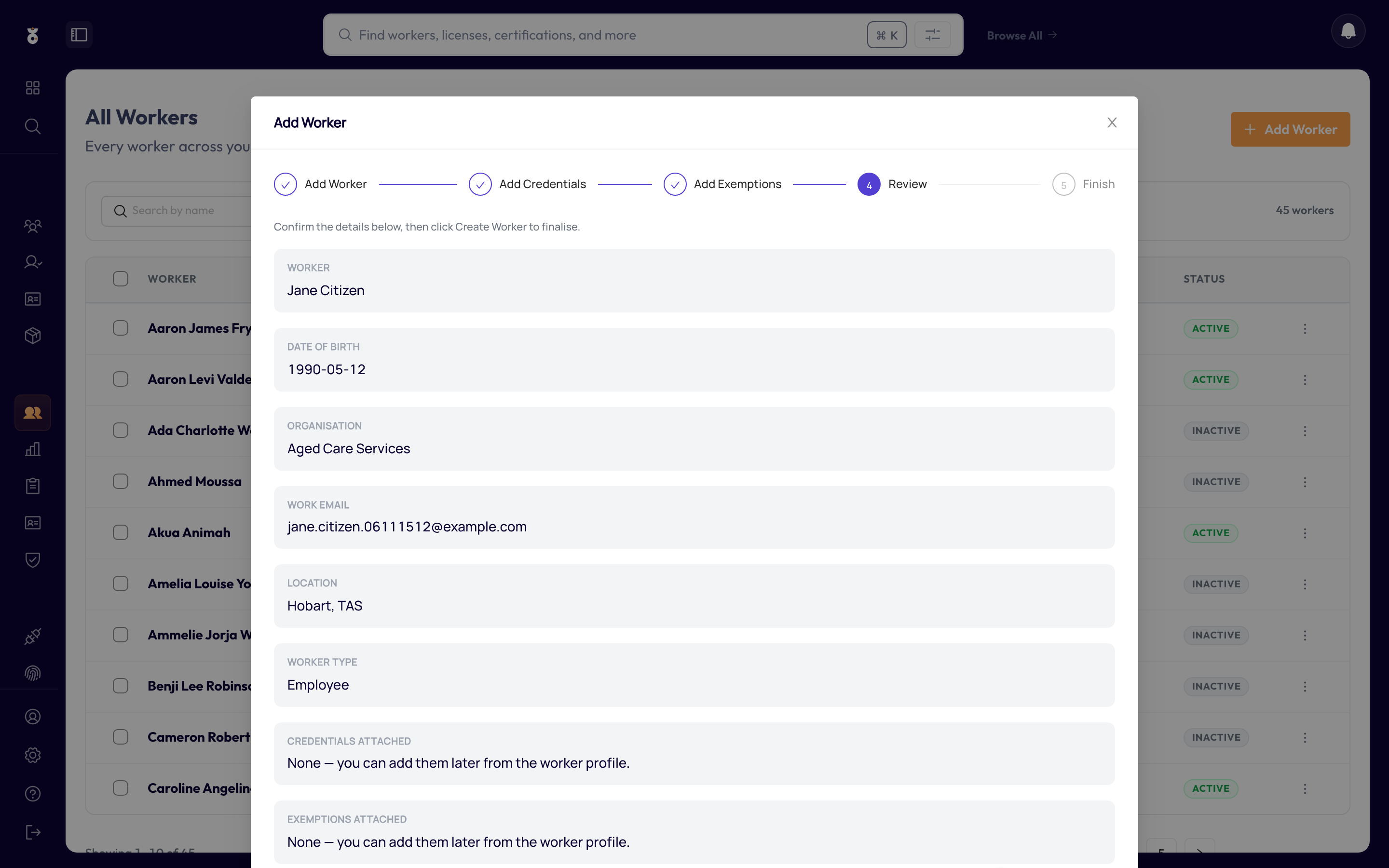
That's it — the worker now has a profile, and any credentials you added are queued for verification.
Don't type them one by one — import a spreadsheet instead.
What's next
- Add a credential to the worker's profile
- Send a fetch request if the worker should supply the details themselves